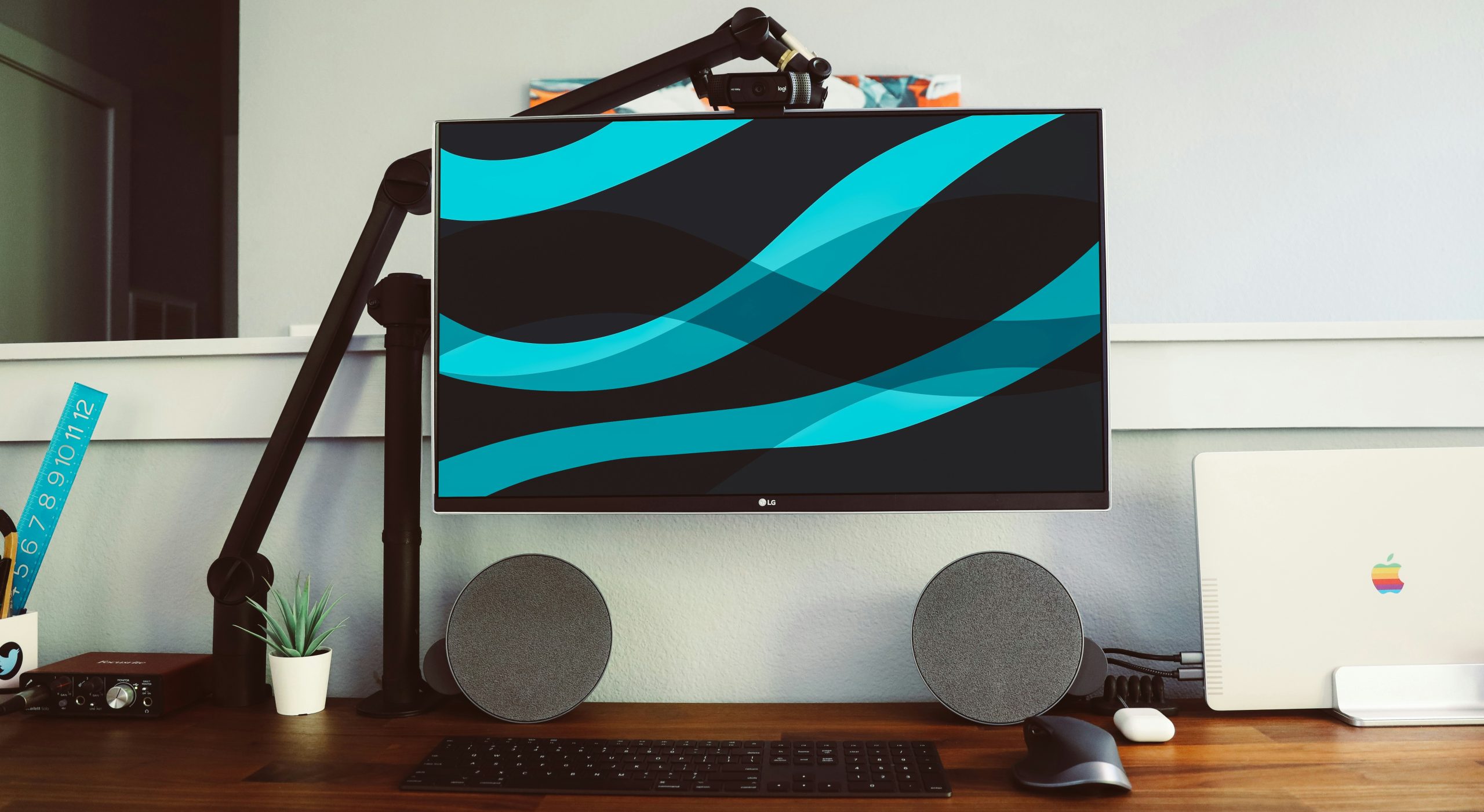
Most people try to fix posture from the chair up. But in reality, one of the biggest sources of discomfort sits directly in front of you: your monitor. If your screen is too low, you lean forward. Too high, and your neck tilts upward. Too far, and you reach. Too close, and your eyes strain. Over time, these small misalignments lead to neck tension, shoulder fatigue, and that familiar “hunched” desk posture.
A monitor arm solves this problem at its source. It gives you precise control over where your screen sits in space, height, depth, angle, and distance, so your setup fits your body instead of forcing your body to adapt. And once you experience a properly positioned monitor, it’s hard to go back.
This guide breaks down everything you need to know about monitor arms: what they are, how they work, why they matter, what features to look for, how to set them up properly, and how to choose the right one for your workspace.
What Is a Monitor Arm?
A monitor arm is an adjustable mounting system that holds your screen above your desk instead of resting it on a fixed stand. Instead of being limited to the height and position of a stock monitor base, a monitor arm allows you to move your screen freely: up, down, forward, backward, and side to side. Most arms also allow tilt and rotation, so you can fine-tune your viewing angle depending on your task.
This level of control is what makes monitor arms fundamentally different from traditional setups. They don’t just hold your screen. They let you position it correctly, which is where the ergonomic benefit comes from.
Why Monitor Arms Matter
Monitor positioning is one of the most overlooked causes of discomfort in a desk setup. When your screen isn’t aligned properly, your body compensates. You lean forward to see better, tilt your head down to read, or subtly raise your shoulders while working. These aren’t dramatic movements, but over hours, they create strain.
A monitor arm removes that problem by allowing precise alignment between your eyes and your screen. When your monitor is at the correct height and distance, your head stays balanced over your shoulders, your neck remains neutral, and your upper body doesn’t have to constantly adjust. This reduces the kind of low-level tension that builds throughout the day and eventually turns into discomfort.
There’s also a practical side that many people underestimate. By lifting your monitor off the desk, you free up usable workspace. This can make your desk feel less cluttered, give you room for accessories, and create a cleaner, more flexible setup, especially if you’re working with limited space.
How Monitor Arms Work
Monitor arms attach to your desk, usually via a clamp or grommet, and use a series of joints or gas springs to allow smooth movement. The key difference between a monitor arm and a fixed stand is dynamic positioning.
Instead of setting your monitor once and working around it, you can adjust it throughout the day. You might bring the screen closer when focusing, push it back when you need space, or raise it slightly when standing at a sit-stand desk. Better monitor arms use gas spring mechanisms that counterbalance the weight of your screen. This allows you to move the monitor effortlessly and have it stay exactly where you place it.
The Real Benefits of Using a Monitor Arm
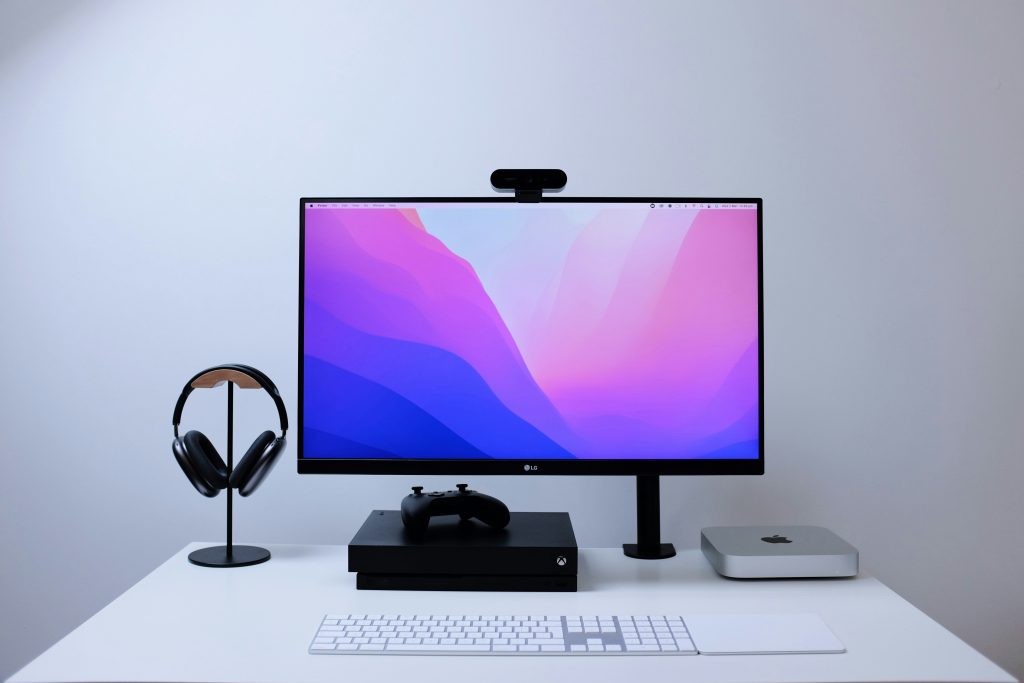
It Fixes Screen Positioning at the Source
Most people try to correct their posture by adjusting their chair or forcing themselves to sit upright. But if your monitor is in the wrong place, your body will always adapt to it. A monitor arm allows you to bring the screen to eye level, at the correct distance, so your posture naturally improves without effort. You’re not “trying” to sit better. The setup makes it easier.
It Reduces Neck and Shoulder Strain Over Time
Poor monitor placement often leads to subtle forward head posture or downward gaze. These positions don’t feel extreme, but they create constant tension in the neck and shoulders. By aligning the screen properly, a monitor arm reduces the need for these compensations. The difference isn’t always immediate, but over time, it significantly reduces the buildup of strain.
It Adapts to Different Working Positions
If you use a sit-stand desk, a fixed monitor stand quickly becomes a limitation. A monitor arm moves with you. You can raise the screen when standing, lower it when sitting, and adjust the distance based on your posture. This keeps your setup consistent across positions, which is essential for long-term comfort.
It Creates Usable Desk Space
Monitor stands take up more space than most people realize. By mounting your monitor, you free up the area underneath for keyboards, notebooks, accessories, or simply a cleaner workspace. This isn’t just about aesthetics. It changes how your desk functions.
It Supports Multi-Monitor Setups Properly
Dual or triple monitor setups are difficult to align using standard stands. A monitor arm allows you to position screens at equal height and angle, reducing the need to twist your neck or constantly adjust your viewing position. This becomes especially important for productivity-focused work.
Types of Monitor Arms
Choosing a monitor arm isn’t about picking a category. It’s about matching the arm to how you work, how often you adjust your screen, and how your desk is set up.
Single Monitor Arms
A single monitor arm gives you the most control over one screen, and that matters more than people think. With a single arm, you can fine-tune height, distance, and angle without compromise. This makes it ideal if you’re focused on ergonomics, especially if you’ve struggled with neck or shoulder tension caused by poor screen positioning.
It’s also the most forgiving option. You don’t have to worry about balancing multiple screens or aligning angles perfectly. You simply position your monitor where it feels right and adjust as needed throughout the day. If your work is centered around one primary screen, even if you occasionally use a laptop or secondary display, this is usually the best starting point.
Dual Monitor Arms
Dual monitor arms can improve productivity, but they also introduce more ways to get your setup wrong. The biggest issue isn’t the arm itself. It’s how the monitors are positioned. If both screens are placed side-by-side at equal importance, you’ll constantly rotate your neck, which creates strain over time. This is one of the most common ergonomic mistakes in multi-monitor setups.
A better approach is to treat one monitor as your primary screen (directly in front of you) and angle the secondary screen slightly inward. A good dual monitor arm allows this kind of positioning, but not all do it well. There’s also a structural difference to consider. Some dual arms use a single horizontal bar, which limits independent positioning. Others use two fully adjustable arms, which offer much better control but require more desk space and setup time.
Dual arms make the most sense if your workflow genuinely benefits from multiple screens, not just because it looks more “productive.”
Gas Spring Arms
Gas spring arms are where monitor arms start to feel like tools rather than fixtures. They use internal tension to counterbalance your monitor’s weight, allowing you to move the screen effortlessly. You can raise, lower, or reposition it with one hand, and it stays exactly where you leave it. This becomes especially valuable if you’re using a sit-stand desk. Instead of readjusting your monitor manually every time you change height, the arm moves with you quickly and smoothly.
It also changes how you interact with your setup. You’re more likely to adjust your monitor throughout the day, bringing it closer for focused work, pushing it back when you need space, because it’s easy to do. If you want flexibility you’ll actually use, this is usually the best option.
Static or Mechanical Arms
Mechanical arms are more rigid and require manual adjustments, often using screws or tension points. They’re typically more affordable and can be very stable once set up properly. But that stability comes at the cost of flexibility. If you need to change your monitor position frequently, the process becomes inconvenient, and most people end up not adjusting it at all. That’s where the ergonomic value drops.
These arms make sense in setups where your monitor position doesn’t change much, such as fixed desk environments or single-position workstations. But if you’re aiming for a more dynamic setup, they can feel limiting over time.
Wall-Mounted Arms
Wall-mounted arms are usually chosen for one reason: saving desk space. By attaching the monitor to a wall instead of the desk, you eliminate the base entirely, which can be useful in very tight or minimalist setups. It also creates a clean, floating look that some people prefer.
However, this comes with limitations. You lose some flexibility in positioning, especially if your wall placement isn’t ideal. Adjustments can also be less convenient compared to desk-mounted arms, and installation is more permanent.
This type of arm works best when your desk position is fixed, and you don’t need to move your setup frequently. It’s less suited for dynamic work environments where flexibility is a priority.
What to Look for in a Monitor Arm
Most people evaluate monitor arms based on specs, but the real difference shows up in how the arm behaves during everyday use. A good monitor arm should disappear into your workflow. It should hold position without drifting, move when you need it to, and allow you to place your screen exactly where it feels natural without friction or constant readjustment. Here’s what actually determines that.
Weight Capacity and Compatibility
The most common mistake people make is assuming any arm that “supports up to X kg” will work fine. In reality, monitor arms perform best when your screen sits comfortably within their ideal range, not at the extreme ends.
If your monitor is too light, the arm may resist staying in place or float upward slightly because the tension is too strong. If it’s too heavy, the opposite happens. The arm slowly drifts downward or struggles to hold position. This becomes especially noticeable with ultrawide monitors or heavier displays, where poor matching leads to constant micro-adjustments throughout the day.
The goal isn’t just compatibility. It’s balance. When the weight is matched correctly, the arm feels neutral. You move it, and it stays exactly where you leave it.
Adjustability Range
Not all monitor arms give you the same freedom of movement, and this is where many setups fall short. Some arms technically adjust, but only within a narrow range. You might be able to raise the monitor slightly, but not enough to reach true eye level. Or you can extend it forward, but not far enough to create a proper viewing distance. This is where ergonomics quietly breaks down.
A good monitor arm should allow you to position your screen based on your body, not force you to adapt to its limits. That means enough vertical range to match your seated or standing height, enough depth to adjust viewing distance comfortably, and enough articulation to angle the screen properly. If the range is limited, you’ll end up compromising, and those compromises are what lead to discomfort over time.
Build Quality and Stability
A monitor arm might look solid in photos, but you only feel its quality once you start using it. Poorly built arms tend to reveal themselves in subtle but frustrating ways. The screen may wobble slightly when typing, drift out of position over time, or feel loose at key joints. None of these seems major individually, but they create constant friction in daily use.
More importantly, they break trust in the setup. If you can’t rely on your monitor to stay where you place it, you stop adjusting it altogether, which defeats the purpose of having an arm in the first place. A well-built arm feels stable at all times. Movements are smooth but controlled, and once positioned, the monitor stays exactly where it should without needing correction.
Mounting Method
Most people treat mounting as a minor detail, but it directly affects both stability and usability. Clamp mounts are the most common for a reason. They attach to the edge of your desk, are easy to install, and work with most setups. For most users, this is the most practical option.
Grommet mounts, on the other hand, go through a hole in the desk. They offer a cleaner, more integrated look and can feel slightly more secure, but they require either an existing desk hole or permanent modification.
The key consideration here is how permanent your setup is. If you move or reconfigure your desk often, a clamp mount offers far more flexibility. If your setup is fixed and you want a cleaner finish, a grommet can make sense.
Cable Management
Cable management is often treated as a cosmetic feature, but it has a functional impact. Without proper routing, cables can limit how far your monitor moves, create resistance when adjusting the arm, or get caught during repositioning. Over time, this discourages you from using the arm dynamically.
Built-in cable management keeps cables aligned with the arm’s movement, allowing you to adjust your monitor freely without interference. It also reduces clutter, which makes your workspace feel more open and easier to work in. It’s a small feature, but one that directly affects how usable the arm feels day to day.
How to Set Up a Monitor Arm Properly

A monitor arm only improves ergonomics if it’s positioned correctly. Your screen should sit roughly at eye level or slightly below, depending on your preference and screen size. This prevents you from looking down or tilting your head upward.
Distance matters just as much. Your monitor should be far enough that you can see the entire screen comfortably without leaning forward, but close enough to avoid squinting or eye strain. The key is alignment. When your monitor is positioned correctly, your head stays balanced, your shoulders remain relaxed, and your body doesn’t need to compensate.
Common Mistakes to Avoid
Treating a Monitor Arm as a Space-Saving Tool Only
One of the most common mistakes is using a monitor arm just to free up desk space, without actually adjusting it for ergonomics. While the extra space is a benefit, it’s not the main reason to use one. If your monitor is still too low, too far, or poorly angled, you’re essentially recreating the same problems as a standard stand, just with a cleaner desk.
The real value of a monitor arm comes from positioning your screen correctly. If you’re not adjusting it to match your eye level and viewing distance, you’re leaving most of its benefits unused.
Setting the Monitor Too Low
Many users mount their monitor and leave it close to its original height. This usually results in the screen sitting below eye level, forcing you to look downward slightly. It may feel natural at first, but over time it encourages forward head posture and neck strain. The exact issue monitor arms are meant to fix.
A properly positioned monitor should allow you to look straight ahead or slightly downward with your eyes, not your neck. Getting this wrong cancels out most of the ergonomic advantage.
Ignoring Weight Compatibility
Monitor arms rely on proper tension to function correctly. If your monitor doesn’t match the arm’s supported weight range, you’ll start to notice issues. The screen may drift downward, resist staying in position, or feel unstable when adjusted. This isn’t just a minor inconvenience; it discourages you from adjusting the monitor at all, which defeats the purpose of having an adjustable setup.
Matching your monitor’s weight to the arm’s ideal range is what makes movement feel smooth and reliable.
Setting It Once and Never Adjusting It Again
A monitor arm is not meant to be a “set and forget” tool. Many people position their screen once and never touch it again, treating the arm like a fixed stand. But the real benefit comes from its flexibility.
Your ideal monitor position can change depending on what you’re doing: focused work, casual browsing, standing vs sitting, or even time of day. A good setup allows for small adjustments throughout your workflow. If you’re not using that flexibility, you’re not getting the full value of the monitor arm.
Are Monitor Arms Worth It?
For most desk setups, yes. A monitor arm is one of the few upgrades that directly changes how you interact with your workspace. It improves posture indirectly by fixing screen positioning, reduces strain over time, and adds flexibility that standard setups simply don’t offer.
It’s not just about comfort. It’s about removing a constant source of misalignment that affects how you sit, move, and work throughout the day.
Final Thoughts
A monitor arm is one of the simplest ways to upgrade your workspace, but also one of the most impactful. It gives you control over one of the most important elements in your setup: where your screen sits in relation to your body. When that alignment is correct, everything else, from posture to comfort to focus, becomes easier.
If you’re building a pain-free workstation, this isn’t an accessory. It’s a foundational tool. From here, explore our guide to the best monitor arms, detailed reviews, and setup recommendations to find the right fit for your workspace.
Frequently Asked Questions
Do monitor arms actually improve posture?
Indirectly, yes. They let you position your screen correctly, which removes the need to lean forward or tilt your head: two major causes of poor posture.
How high should my monitor be on a monitor arm?
Position it so the top of the screen is at or slightly below eye level. Your eyes should look slightly downward, not your neck.
Are monitor arms worth it for a single monitor?
Yes. With one screen, positioning matters even more. A monitor arm gives you full control over height and distance, which most stands don’t.
Do monitor arms work with all desks?
Most do. Clamp mounts fit standard desks, while grommet mounts require a hole. Very thick or glass desks may need special consideration.
Can monitor arms support ultrawide monitors?
Yes, but only if the arm is rated for the weight and size. Using the wrong arm leads to sagging or instability.
Do I need a monitor arm if my monitor has a stand?
Not necessarily, but stands are limited. A monitor arm gives you proper positioning and flexibility that most stock stands can’t.
How far should my monitor be from my eyes?
Roughly an arm’s length. You should see the whole screen clearly without leaning forward.
Are dual monitor arms better than single arms?
Only if you use both screens properly. One main screen in front and a secondary angled slightly is usually the most ergonomic setup.
Will a monitor arm damage my desk?
Not if installed correctly. Clamp mounts are designed to distribute pressure safely on most desks.
Do I still need a monitor arm with a good setup?
If your setup is fixed and already aligned, maybe not. But if you want flexibility or use a sit-stand desk, it’s a strong upgrade.