
Most people think ergonomics starts with big upgrades—a better chair, a standing desk, a new setup. But in practice, discomfort is rarely caused by just one major issue. It comes from small misalignments that repeat for hours every day. A wrist angle that’s slightly off. A monitor that’s just a bit too low. Feet that aren’t properly supported. These aren’t dramatic problems, but they accumulate.
That’s where ergonomic accessories matter. They don’t replace your main setup—they refine it. They correct the small, constant inefficiencies that your desk, chair, or monitor alone can’t fully solve. When chosen correctly, they remove the need for your body to compensate in subtle ways that lead to strain over time.
This guide explains what ergonomic accessories are, how they actually improve a workspace, which ones matter most, how to choose them based on your setup, and how to avoid turning your desk into a collection of unnecessary add-ons.
What Are Ergonomic Accessories?
Ergonomic accessories are designed to improve specific points of interaction between your body and your workspace. Unlike desks and chairs, which define the overall structure, accessories focus on alignment. They address how your hands rest, where your screen sits, how your feet are positioned, and how your body is supported during repetitive tasks.
The goal is not to add more equipment. It’s to remove the need for your body to compensate. When a setup isn’t aligned, you naturally adjust—leaning forward to see better, lifting your shoulders slightly while typing, shifting your weight to stay comfortable. These adjustments are subtle, but they repeat constantly. Accessories reduce those adjustments by bringing the setup closer to your natural positioning.
Why Ergonomic Accessories Matter
Most desks and chairs are designed around averages. That means they work reasonably well for a wide range of people, but rarely perfectly for anyone. Small differences in height, arm length, or sitting habits create gaps between your body and the setup. Those gaps are where discomfort starts.
Over the course of a workday, your body fills those gaps on its own. You might lean forward to bring your screen into focus, or angle your wrists slightly to match your keyboard height. These adjustments don’t feel significant in the moment, but they place a continuous load on muscles and joints.
Ergonomic accessories close those gaps. They align the workspace with your body so you don’t have to keep correcting your position. That reduction in effort is what makes a setup feel easier to use—not just for minutes, but for hours.
How Ergonomic Accessories Work in Practice
The effect of ergonomic accessories is often subtle at first. What changes is not what you actively notice, but what you stop experiencing. You don’t feel the urge to shift your posture as frequently. Your shoulders stay relaxed without conscious effort. Typing doesn’t create the same buildup of tension in your wrists or forearms. This happens because each accessory targets a specific pressure point or alignment issue.
A monitor arm brings your screen into your natural line of sight. A footrest stabilizes your lower body, preventing uneven weight distribution. A wrist rest reduces extension in your hands, allowing your joints to stay neutral during repetitive movement. Individually, each adjustment is small. Together, they change how your workspace feels over time.
The Most Important Ergonomic Accessories
Monitor Arms and Risers
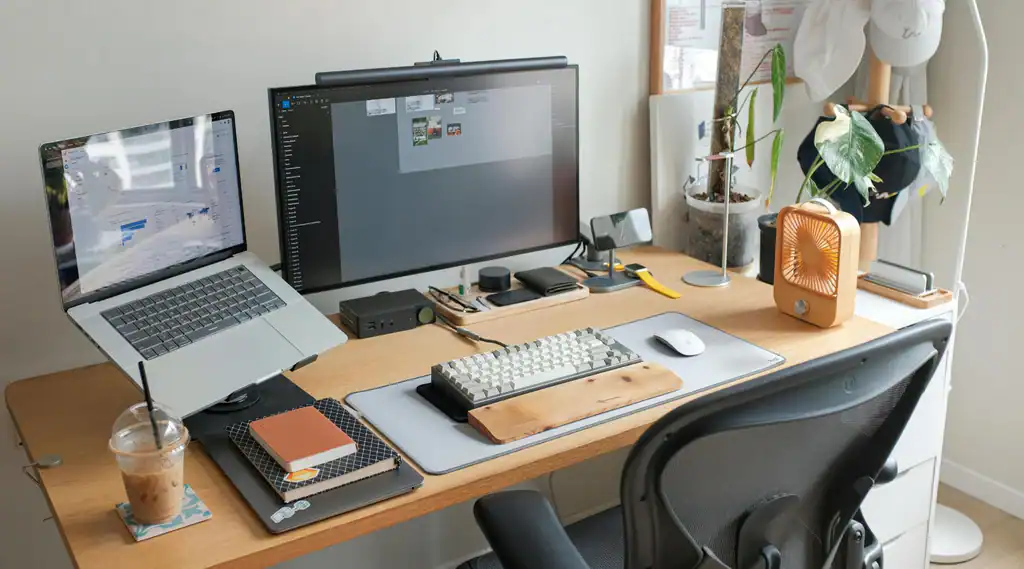
Screen position has a direct impact on how your upper body behaves. When a monitor sits too low, your head tilts downward. When it’s too far away, your torso moves forward to compensate. These shifts create tension that builds gradually, especially in the neck and shoulders.
A monitor arm or riser allows you to bring the screen to a comfortable height and distance. Once aligned properly, your head remains balanced, and your upper body doesn’t need to adjust constantly.
Keyboard Trays and Wrist Support
Typing places repeated stress on your hands and forearms. If your keyboard is positioned too high, your wrists extend upward. If it’s too low, your posture collapses forward. Neither position is sustainable over long periods.
A keyboard tray helps position your hands at the correct height relative to your elbows, while wrist support reduces unnecessary tension during use. Together, they create a more neutral working position that feels consistent throughout the day.
Footrests
Foot positioning plays a larger role in posture than most people expect. When your feet aren’t fully supported, your body shifts to compensate. This often leads to uneven weight distribution, which affects how your hips and lower back are positioned.
A footrest provides a stable base, especially in setups where desk or chair height doesn’t align perfectly. With proper support at the base, the rest of your posture becomes easier to maintain.
Anti-Fatigue Mats
Standing introduces a different type of strain. Hard surfaces create pressure in the feet and limit natural movement. Over time, this leads to fatigue that makes standing difficult to sustain.
An anti-fatigue mat softens that impact and encourages small, continuous movements. These movements help reduce pressure buildup and make standing feel more manageable over longer periods.
Laptop Stands and External Inputs
Laptops combine screen and keyboard into a single unit, which forces a compromise. If the screen is at eye level, the keyboard becomes too high. If the keyboard is positioned correctly, the screen sits too low. This creates a constant trade-off between comfort and usability.
A laptop stand separates these functions by raising the screen, while external input devices restore proper hand positioning. This allows your setup to function more like a full workstation.
Desk Bikes
A desk bike addresses a problem most ergonomic setups don’t fully solve: prolonged stillness. Even with a well-aligned workstation, sitting in one position for extended periods leads to stiffness and reduced circulation. A desk bike introduces low-intensity movement while you work, keeping your legs active without disrupting focus.
This changes how your body behaves over time. Instead of remaining completely static, your lower body stays engaged, which can reduce that heavy, sluggish feeling that builds during long sessions. It’s not a replacement for proper posture or movement breaks, but it adds a layer of activity that makes sedentary work less rigid and more sustainable.
Ergonomic Keyboard
Standard keyboards are flat and fixed, which often places your wrists in an extended position. Over time, this creates tension in your forearms and increases strain during repetitive typing. The issue isn’t always obvious at first—it builds gradually as small inefficiencies repeat.
Ergonomic keyboards are designed to reduce that strain by aligning your hands more naturally. Split layouts, angled key positioning, and curved designs allow your wrists and forearms to rest in a more neutral position. The benefit becomes more noticeable the longer you type. Instead of adjusting your hands to the keyboard, the keyboard adapts to your natural positioning.
Ergonomic Mouse
Using a standard mouse often requires your forearm to rotate inward and your wrist to stay in a slightly twisted position. That position is manageable for short periods, but over time it creates tension in the wrist and forearm—especially with repetitive movements like scrolling and clicking.
Ergonomic mice are designed to reduce that rotation. Vertical and angled designs allow your hand to rest in a more natural handshake position, which reduces strain on the joints. This leads to a more relaxed grip and less tension during extended use. The difference is subtle at first, but it becomes significant with daily use.
Lumbar Support
Lower back discomfort is often the result of unsupported sitting rather than sitting itself. When your chair doesn’t support the natural inward curve of your spine, your lower back flattens, and your posture gradually collapses. This increases pressure on the spine and leads to fatigue.
Lumbar support fills that gap. Whether built into a chair or added as an accessory, it helps maintain the natural curve of your lower back, reducing the effort required to sit upright. This allows your body to stay supported without constant correction. The key is proper positioning. When aligned correctly, lumbar support stabilizes your posture instead of forcing it.
How to Choose the Right Ergonomic Accessories
Adding accessories without understanding the problem rarely leads to better results. The most effective approach is to identify where discomfort builds during your workday. Pay attention to patterns—whether it’s tension in your neck, fatigue in your lower back, or strain in your wrists. Each issue points to a specific misalignment.
Once identified, choose accessories that directly address that misalignment. Avoid the temptation to upgrade everything at once. A focused adjustment often delivers more noticeable improvement than multiple unrelated additions. The goal is precision, not quantity.
How Ergonomic Accessories Work Together

No single accessory defines comfort. Each one affects a different part of your setup, and their effectiveness depends on how well they align with each other. A monitor positioned correctly won’t help if your keyboard height is off. A supportive chair won’t solve discomfort if your feet aren’t grounded.
When these elements are aligned, the setup feels cohesive. Your body remains stable, your movements feel natural, and you spend less time adjusting your position. This is where ergonomic improvements become noticeable—not in individual features, but in how everything works together.
Common Mistakes to Avoid
Fixing Symptoms Instead of the Root Problem
One of the most common mistakes is adding accessories without understanding what’s actually causing discomfort. For example, using a wrist rest won’t solve strain if your keyboard is positioned too high. Raising your monitor won’t help if it’s still too far away or angled incorrectly. These adjustments may feel like improvements at first, but they don’t address the underlying issue.
Ergonomic accessories work best when they solve a specific alignment problem—not when they’re used as general fixes.
Overcrowding the Workspace
Adding too many accessories can create a new problem: lack of usable space. When your desk becomes crowded, movement becomes restricted. You may find yourself working in tighter positions, adjusting less, or avoiding certain tools altogether simply because there’s no room to use them comfortably.
A well-designed setup should feel open and functional. If adding an accessory makes your workspace harder to use, it’s working against you.
Prioritizing Aesthetics Over Function
Some accessories look well-designed but offer limited practical benefit. Minimalist or visually appealing products can still lack adjustability, support, or proper alignment. Over time, these limitations become noticeable, especially during longer work sessions. What matters is how well the accessory fits your setup and supports your body—not how it looks on your desk.
Are Ergonomic Accessories Worth It?
They are—when they address real issues. Their impact isn’t immediate in the way a new chair or desk might be. Instead, they improve the details that affect how your setup feels over time. By reducing small, repeated sources of strain, they make your workspace more consistent and easier to use. That consistency is what prevents discomfort from building throughout the day.
Final Thoughts
Ergonomic accessories refine what larger upgrades can’t fully solve. They address the details that shape how your body interacts with your workspace, making small adjustments that lead to meaningful improvements over time. When chosen carefully and used with purpose, they help create a setup that feels natural to use—without requiring constant correction or effort.
Explore our guide to the best ergonomic accessories, detailed reviews, and recommendations to find what fits your setup.
Frequently Asked Questions
Do I need ergonomic accessories if I already have a good chair and desk?
Often, yes. Chairs and desks set the foundation, but they don’t account for every detail—like wrist angle, screen height, or foot positioning. Accessories refine those gaps so your setup actually fits your body.
Which ergonomic accessory should I start with first?
Start where you feel discomfort. If it’s your neck, look at monitor positioning. If it’s your wrists, check keyboard height and support. If it’s your lower back, your foot positioning may be off. The best first upgrade solves a specific problem.
Are ergonomic accessories worth it for short work sessions?
Even shorter sessions can involve repetitive strain, especially with laptops or poor setups. Accessories become more valuable as time and frequency increase.
Can too many ergonomic accessories make a setup worse?
Yes. Adding multiple accessories without a clear purpose can crowd your workspace and limit movement. Each item should solve a specific issue—otherwise, it becomes unnecessary complexity.
Do ergonomic accessories actually prevent pain?
They reduce the conditions that lead to it. By improving alignment and reducing strain, they lower the chances of discomfort building up over time. They’re most effective when combined with proper setup and regular movement.
Are expensive ergonomic accessories better?
Not always. Higher-quality materials and adjustability can make a difference, but the key is fit. An expensive accessory that doesn’t match your setup is less useful than a simpler one that does.
Do I need all ergonomic accessories for a proper setup?
No. Most setups only need a few targeted adjustments. The goal isn’t to add more—it’s to fix what’s slightly off.
Can ergonomic accessories replace a bad desk or chair?
No. They improve details, not foundations. If your main setup is significantly misaligned, accessories can only compensate so much.
How do I know if an accessory is actually helping?
You stop noticing discomfort building up. You’ll shift less, adjust less, and feel more consistent throughout your work session. The improvement is gradual but noticeable over time.
Should I upgrade everything at once?
It’s better not to. Making one change at a time helps you understand what’s actually improving your setup. This leads to better decisions and avoids unnecessary purchases.