How to Set Up a Standing Desk for Proper Ergonomics and Comfort
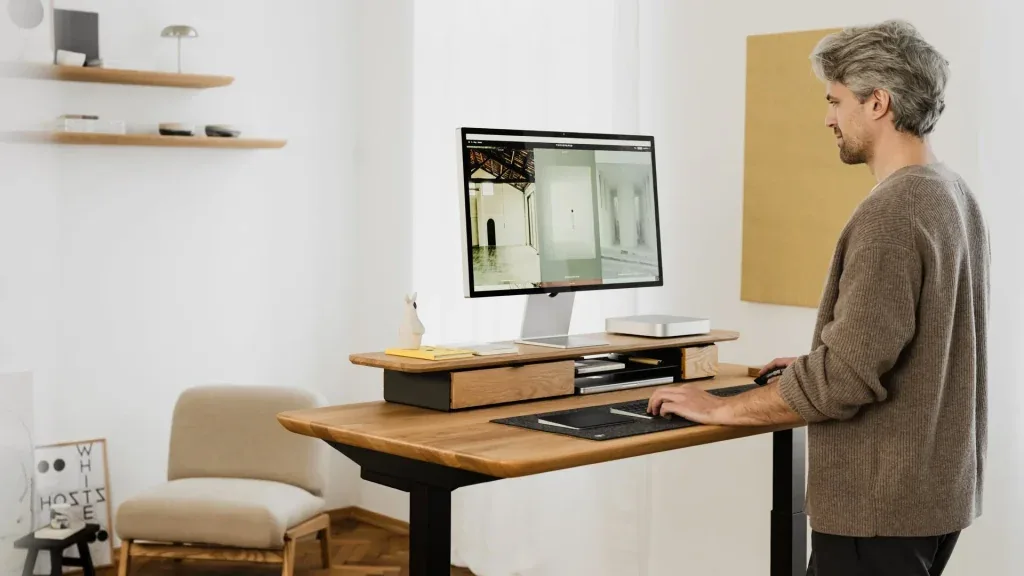
A standing desk can improve posture, reduce discomfort, and help you stay more active during the workday. But simply raising your desk and standing isn’t enough. A poorly adjusted standing desk often creates new problems, especially in the shoulders, wrists, and lower back.
The difference between a setup that supports your body and one that slowly causes strain comes down to precise adjustments. Height, monitor position, and posture all work together. If one is off, the rest of your body compensates. That’s where discomfort starts.
This guide breaks down exactly how to set up a standing desk in a way that actually works in real life. Not ideal diagrams, but adjustments you can apply based on how you work, what equipment you use, and how your body responds over time.
What an Ergonomic Standing Desk Setup Actually Means
Most people focus on finding the “correct” standing desk height, but posture is the real foundation. Your body isn’t static. Even with a perfectly adjusted desk, poor posture can still create tension in your neck, shoulders, and lower back.
An ergonomic standing desk setup supports your natural alignment. Your ears should sit over your shoulders, your shoulders over your hips, and your hips over your ankles. When this alignment breaks, your muscles compensate to keep you upright. That’s what leads to fatigue and discomfort after just an hour of standing.
One of the biggest issues is subtle forward leaning. It often happens when your monitor is too low or too far away. You won’t notice it immediately, but over time, it puts strain on your neck and upper back.
Another common problem is locked knees. Standing rigidly might feel stable, but it reduces blood flow and increases fatigue. A good setup allows for small, natural movement instead of forcing your body into a fixed position.
How to Set the Correct Standing Desk Height
Your desk height should allow your elbows to rest at roughly a 90-degree angle. This keeps your forearms parallel to the ground and prevents your shoulders from lifting or dropping. If your desk is too high, your shoulders rise slightly, creating tension that builds throughout the day. If it’s too low, you start leaning forward, which shifts the strain to your lower back.
There’s no universal height that works for everyone. Taller individuals often need more attention on monitor positioning to avoid neck strain, while shorter users may struggle with desk ranges that don’t go low enough. The key is to adjust your desk to your body, not the other way around. Start with elbow height, then adjust everything else around it.
Monitor Height Standing Desk Setup
Your monitor should sit at eye level, with the top of the screen roughly aligned with your line of sight. This prevents you from tilting your head up or down for extended periods. Distance also matters. If the screen is too close, your eyes strain. Too far, and you lean forward. A comfortable distance is usually about an arm’s length.
Dual monitors introduce a different challenge. If you use both equally, position them side by side with the center point directly in front of you. If one is primary, place it directly in front, and position the secondary screen slightly off to the side. This reduces constant neck rotation, which can lead to stiffness over time.
Keyboard and Mouse Placement for Standing Desk Ergonomics
Your keyboard and mouse should sit at a height where your wrists remain straight. Bending them upward or downward creates unnecessary pressure on tendons, which can lead to discomfort or long-term issues. Keeping your forearms level with the desk helps maintain this neutral position.
If your desk is too shallow, you’ll feel cramped, which encourages poor posture. A deeper surface allows you to position your monitor at the correct distance while keeping your arms relaxed. Spacing isn’t just about comfort. It directly affects how your body aligns during long work sessions.
Proper Standing Desk Posture That Prevents Pain
Your spine should remain neutral, not overly straight or rigid. A slight natural curve is what your body is designed for. Your head should sit comfortably over your shoulders, not pushed forward. Forward head posture is one of the most common issues with standing desks, especially when the monitor height is off.
Standing evenly on both feet reduces strain. Shifting weight occasionally is natural and actually beneficial. Some people prefer a slight staggered stance or using a footrest to alternate pressure. This movement helps reduce fatigue and improve circulation.
How Long Should You Stand at a Desk?
Standing all day isn’t the goal. A balanced approach works better. Many experts recommend starting with a 1:1 ratio, alternating between sitting and standing throughout the day. Over time, you can adjust based on comfort and workload.
If you notice lower back tightness, leg fatigue, or reduced focus, it’s usually a sign you’ve been standing too long. The goal is to stay comfortable and productive, not to push through discomfort.
Standing Desk Setup for Different Workstyles
Laptop Users
Laptop users run into a built-in limitation because the screen and keyboard are fixed together. If you prioritize one, the other suffers. Raising the laptop to eye level improves your neck and upper back alignment, but it pushes your arms into a raised, unsupported position that leads to shoulder and wrist strain over time.
The most effective solution is to separate those functions. Elevate the laptop so the screen sits at eye level, then use an external keyboard and mouse placed at proper elbow height. This allows your wrists to stay neutral and your shoulders to relax while still maintaining a healthy head and neck position. It also gives you more flexibility with desk depth, so you’re not forced into a cramped setup.
If you work long hours on a laptop, this adjustment alone can completely change how your body feels at the end of the day.
Creative Professionals
Designers, video editors, and other creative professionals tend to lean forward without realizing it. It usually happens during detail-heavy tasks where you’re focusing on precision. Over time, this habit pulls your head forward and rounds your shoulders, even if your desk height is technically correct.
For this type of work, monitor positioning becomes more than a basic guideline. Your screen should be close enough to see details clearly without leaning in, but not so close that it strains your eyes. Increasing display scaling or zooming into your work can also help reduce the need to physically move closer.
Many creatives benefit from slightly larger monitors or dual-screen setups, as they allow for better visibility without compromising posture. The goal is to bring the work to your eyes, not your body to the screen.
Office and Remote Workers
For general office work, the biggest challenge isn’t achieving a perfect ergonomic position. It’s maintaining a setup that stays comfortable throughout the entire day. Emails, meetings, and multitasking create constant shifts in how you interact with your desk, so your setup needs to support that flexibility.
Consistency matters more than fine-tuning every measurement. Your desk height, monitor position, and input devices should feel natural every time you transition between sitting and standing. If you find yourself constantly readjusting things, it usually means something isn’t aligned properly.
A stable setup reduces friction, which makes it easier to stick with healthier habits like alternating between sitting and standing. Over time, that consistency has a bigger impact than chasing small ergonomic optimizations that aren’t sustainable.
Common Standing Desk Setup Mistakes (and How to Fix Them)
Shoulder Tension
Shoulder tension usually builds gradually, which is why a lot of people don’t connect it to their standing desk setup right away. The most common cause is a desk that’s slightly too high, even by an inch or two. When your desk sits above your natural elbow height, your shoulders subtly lift to compensate. You won’t notice it in the first 10 minutes, but after an hour, that constant elevation creates tightness across your upper traps and neck.
Another contributing factor is reaching forward for your keyboard or mouse. If they’re positioned too far away, your shoulders stay engaged instead of relaxed. The fix isn’t just lowering the desk slightly. You also want to bring your input devices closer so your elbows can stay tucked near your sides. When everything is aligned correctly, your shoulders should feel neutral, not actively holding position.
Lower Back Pain
Lower back discomfort is one of the most common complaints with standing desks, and it’s rarely caused by standing itself. It usually comes from how you’re standing. A forward lean is the biggest culprit. This often happens when your monitor is too low or too far away, causing your upper body to drift forward while your lower back compensates to keep you balanced.
Another issue is standing too rigidly. Locking your knees and keeping your body stiff reduces natural movement, which increases pressure on your lower spine. Over time, that lack of movement creates fatigue and discomfort.
Fixing this starts with bringing your screen to eye level so your head stays stacked over your shoulders. Then focus on allowing subtle movement. Shifting weight, slightly bending your knees, or using a footrest to alternate pressure helps reduce strain. Your posture should feel supported, not forced.
Wrist Discomfort
Wrist discomfort is usually a sign that your hands are working at an unnatural angle. This often happens when your keyboard is either too high or too low relative to your elbows. If your wrists bend upward, you’re compressing tendons. If they drop downward, you’re stretching them under tension. Neither position is sustainable over long periods.
Another overlooked issue is keyboard tilt. Many people use the built-in feet to angle the keyboard upward, which actually increases wrist extension. For a standing desk setup, a flat or slightly negative tilt keeps your wrists in a more neutral position.
The fix involves aligning your keyboard so your forearms stay level and your wrists remain straight while typing. Your hands should float naturally over the keys without needing to bend or press downward. Once this alignment is correct, discomfort tends to disappear quickly, especially if you’ve been dealing with early-stage strain.
Accessories That Improve Your Standing Desk Setup
Anti-Fatigue Mats
Standing on a hard surface like tile or wood might feel fine at first, but over time, it puts continuous pressure on your feet, knees, and lower back. That pressure builds gradually, which is why fatigue often shows up after an hour or two rather than immediately. An anti-fatigue mat works by adding a slightly cushioned, responsive surface that reduces the impact and encourages subtle movement in your legs.
That movement is important. A good mat isn’t just about softness. It promotes micro-adjustments in your stance, which helps improve circulation and prevent stiffness. This becomes especially noticeable during longer standing sessions, where a hard floor would normally lead to discomfort. If you’re planning to stand for more than short intervals, a mat isn’t just a comfort upgrade. It directly affects how long you can stand without strain.
Monitor Arms
Monitor arms solve a problem that most standing desk users don’t fully realize they have. Desk height alone doesn’t guarantee proper monitor positioning, especially if your screen sits on a fixed stand. Even if your desk is perfectly adjusted, your monitor might still be too low, too high, or slightly off-center, which forces your neck and shoulders to compensate.
A monitor arm gives you precise control over height, distance, and angle. This becomes even more valuable with dual monitor setups, where alignment issues are more common. Instead of adjusting your posture to fit your screen, you bring the screen to where your eyes naturally fall. Over time, that reduces neck strain and helps maintain consistent posture throughout the day. It also frees up desk space, which makes it easier to keep your keyboard and mouse positioned correctly.
Footrests
A footrest might seem unnecessary when you’re already standing, but it plays a key role in reducing fatigue. Standing in a perfectly symmetrical position for long periods can actually increase strain on your lower back and legs. Your body isn’t designed to stay completely still. It needs small shifts in weight to stay comfortable.
Using a footrest allows you to alternate pressure between legs, which relieves tension in your lower back and hips. Even a slight elevation of one foot changes your posture enough to reduce strain. Many people naturally shift their stance throughout the day, and a footrest supports that movement in a more controlled way. It’s a simple addition, but it makes a noticeable difference in how sustainable your standing setup feels over long work sessions.
Frequently Asked Questions
What is the correct standing desk height?
It depends on your body, but your elbows should sit at about a 90-degree angle with your forearms parallel to the floor.
How high should my monitor be on a standing desk?
The top of your screen should be at or slightly below eye level to prevent neck strain.
Is it better to stand all day at a desk?
No. Alternating between sitting and standing provides better results for comfort and long-term health.
Why does my back hurt when using a standing desk?
It’s usually due to poor posture, incorrect desk height, or standing too long without movement.
Do I need accessories for a proper standing desk setup?
Not always, but tools like monitor arms and anti-fatigue mats can improve comfort and alignment significantly.